05
Pairing,
connectivity
& integrations.
Pair anything,
connect everything.
Pair Bluetooth headphones to a machine.
Pair Apple, Garmin, and Samsung watches as heart-rate monitors.
Use BYOD — pair your own device to LCD equipment.
Connect Apple Health, Garmin, and Strava via the iFIT mobile app.
First-time pairing,
then it remembers.
The most-asked pairing question on the floor. Once it's done it's done — but the first-time flow has a couple of gotchas.
headphones Workout Settings → Bluetooth.
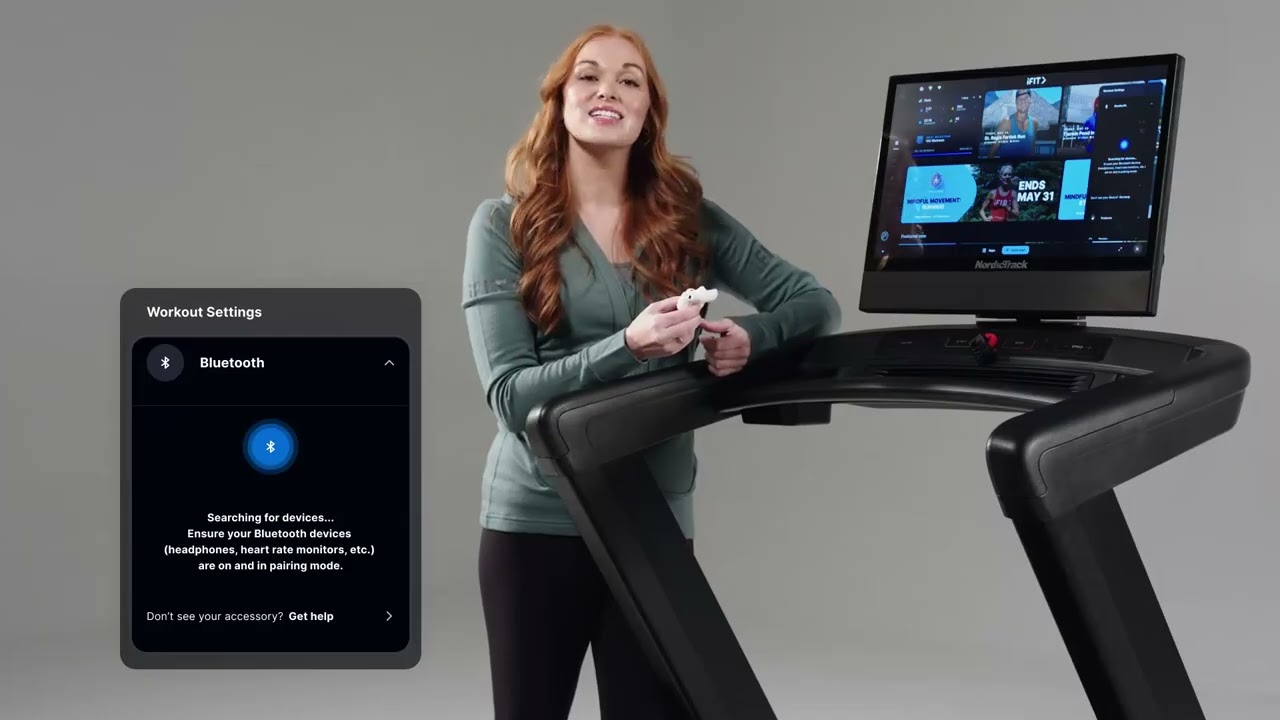
Bluetooth headphones —
what to remember.
01
- 01
Workout Settings (bottom-right) → Bluetooth.
- 02
Put headphones in pairing mode (AirPods: open case, hold back button until light flashes white).
- 03
Tap your device when it appears in the list.
- 04
Pair persists for next session — only do this once per pair.
Three watch families,
three quirks.
- 01
All three pair via Bluetooth (Workout Settings → Bluetooth).
- 02
Apple Watch: needs the iFIT mobile app + watch app installed, with notifications enabled. Pairs cleanly with Apple Health later in this module.
- 03
Garmin: watch must be set to "broadcast heart rate" or the equipment won't see it.
- 04
Samsung: verify HR sharing is enabled on the watch first.
- 05
Once paired, every family persists across sessions.
The most common
HR monitor on iFIT.
Most customers asking about HR pairing have an Apple Watch on their wrist already. This is the fastest demo.
Watch Workout Settings → Bluetooth.
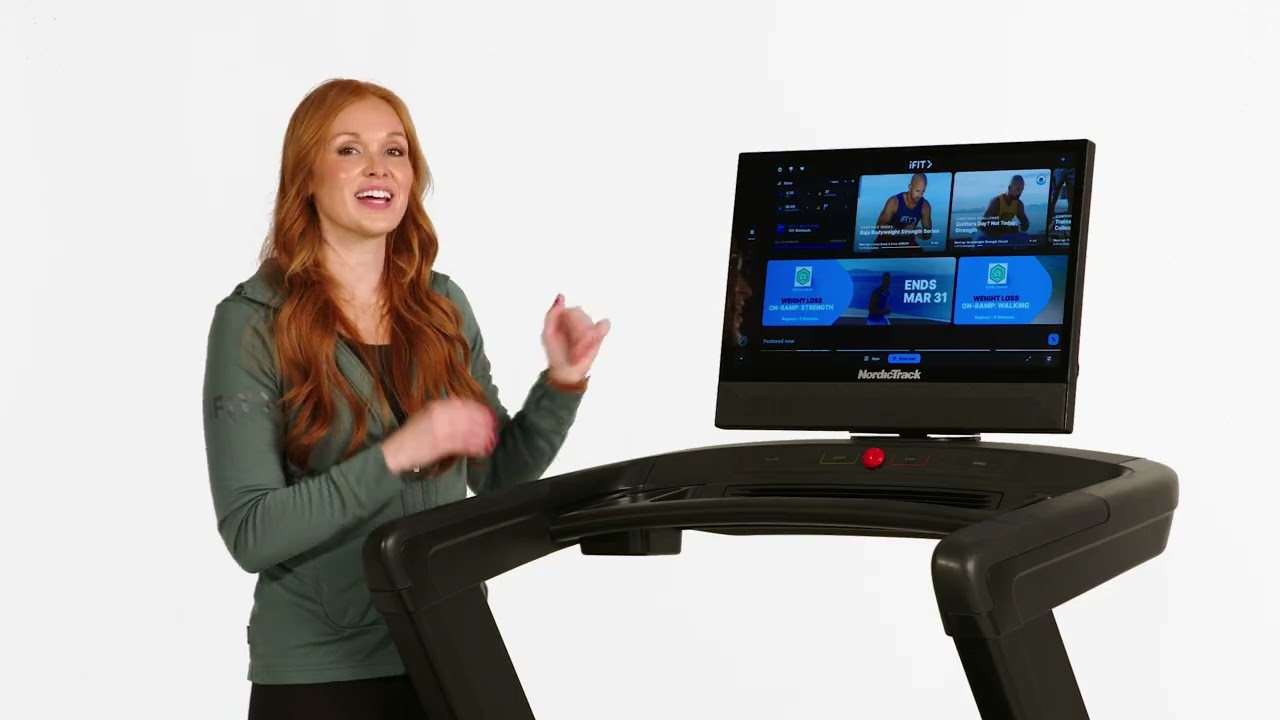
Apple Watch —
what to remember.
02
- 01
Pair via Workout Settings → Bluetooth.
- 02
Apple Watch shows live HR and HR zone alongside the workout.
- 03
Requires the iFIT mobile app + Apple Watch app installed, with notifications enabled on both Watch and iPhone. Works seamlessly with Apple Health (covered later in this module).
Pair-able — but only if
"broadcast HR" is on.
Garmin's the most common "why isn't this working?" call. The fix is almost always the broadcast HR setting on the watch.
watch Workout Settings → Bluetooth.
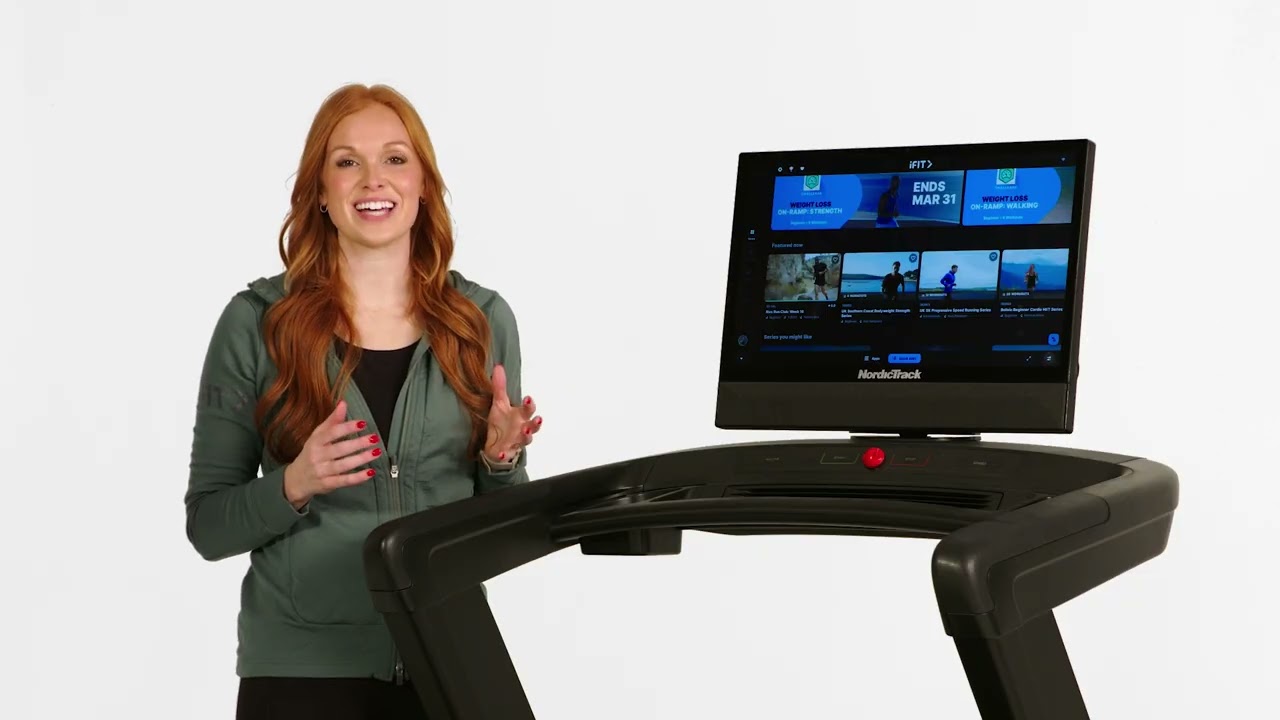
Garmin —
what to remember.
03
- 01
Pair via Workout Settings → Bluetooth.
- 02
Garmin watch must be set to "broadcast heart rate" or the equipment will not see it.
- 03
Once paired, the equipment remembers the device for future workouts.
Pair after enabling
HR sharing.
Less common than Apple or Garmin, but the third request you'll get on the floor. Confirm sharing is on, then pair.
watch Workout Settings → Bluetooth.
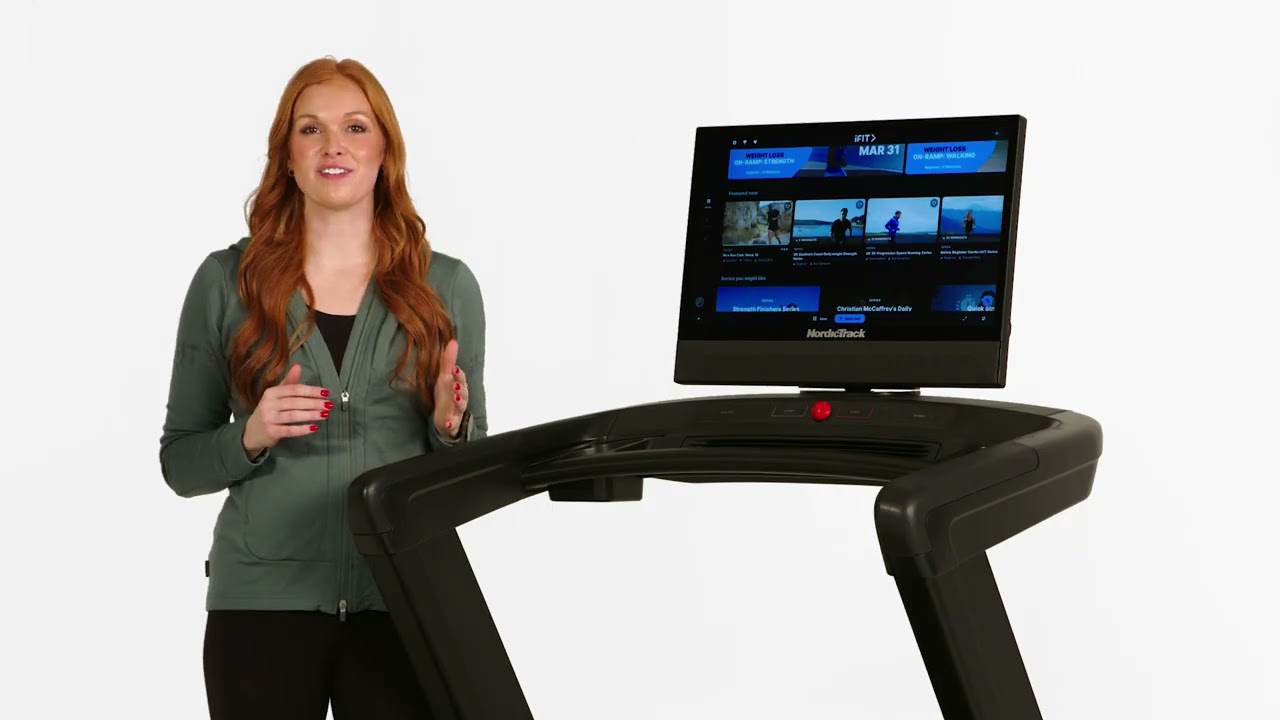
Samsung —
what to remember.
04
- 01
Pair via Workout Settings → Bluetooth.
- 02
Verify HR sharing is enabled on the watch first.
- 03
Pair persists across sessions.
For LCD equipment
without a touchscreen.
Many older iFIT-compatible machines have an LCD instead of a touchscreen. BYOD is how a Train member gets a workout on those.
pair to LCD iFIT mobile app paired to the equipment.
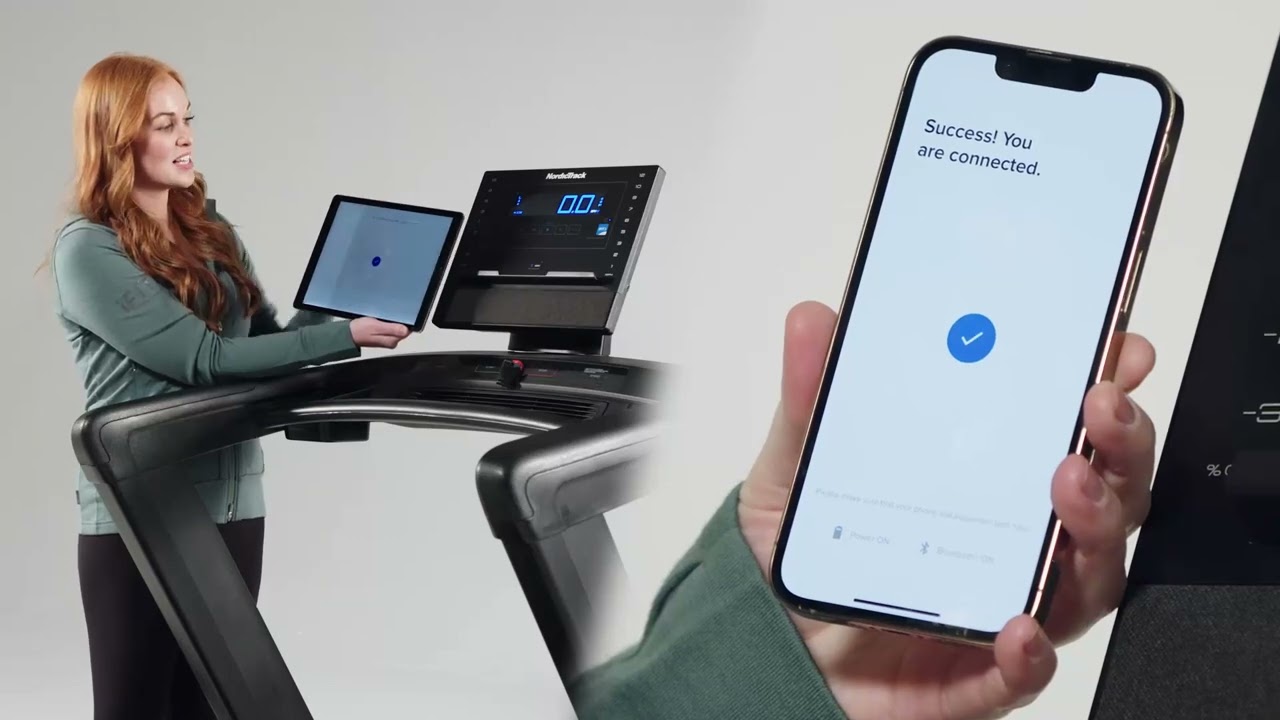
BYOD / pair to LCD —
what to remember.
05
- 01
For iFIT-compatible LCD equipment without a built-in touchscreen.
- 02
Use the iFIT mobile app on phone or tablet, paired to the equipment.
- 03
Workouts run from the app; the LCD shows live metrics.
- 04
This is how iFIT Train members typically use the app on LCD equipment.
Sync workouts from
Apple Health, Garmin, Strava.
Customers who already track in another app expect their iFIT workouts to show up there. This is how — and the path lives in the iFIT mobile app, not on the equipment.
apps iFIT mobile app → Menu → Settings → Preferences → Connected Apps.
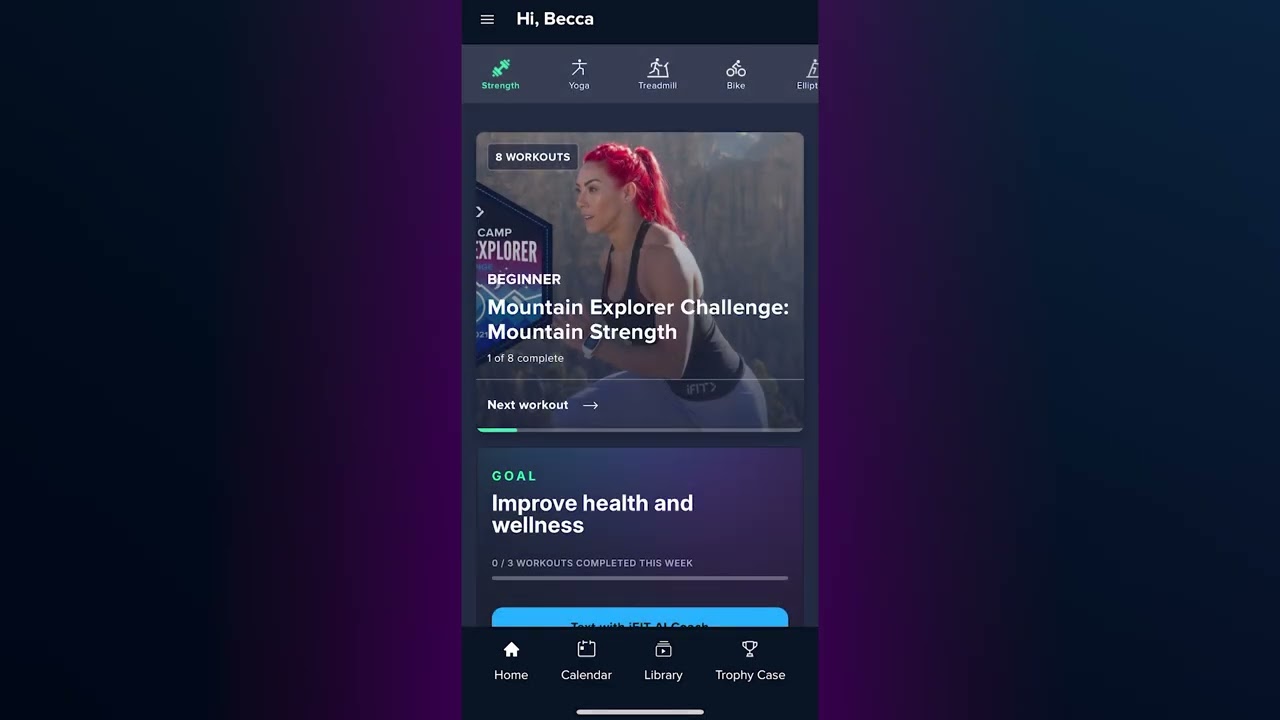
Connected apps —
what to remember.
06
- 01
Use the iFIT mobile app — Menu → Settings → Preferences → Connected Apps.
- 02
Supported: Apple Health, Garmin, Strava.
- 03
Workouts logged in those apps appear in the iFIT calendar and roll into iFIT stats.
Six things
to remember.
01
Bluetooth = home base
Workout Settings → Bluetooth is where every pairing lives on touchscreen equipment.
02
Garmin quirk
"Broadcast heart rate" must be on or the equipment won't see it.
03
Samsung quirk
Verify HR sharing is enabled on the watch first.
04
BYOD = LCD bridge
iFIT app pairs to LCD equipment so Train members can run a workout.
05
Integrations = mobile
Apple Health, Garmin, Strava all live in the iFIT mobile app.
06
Pairs persist
Once paired, every device remembers itself for the next session.
Take the quiz
to complete the module.
Pass at 80% to mark Module 05 complete. Use your work email — that's how completion gets credited to you.
Open Module 05 quiz